Warning
This guide is for Paprika 4, which is currently in beta. Switch to the Paprika 3 guide.
Browsing Recipes
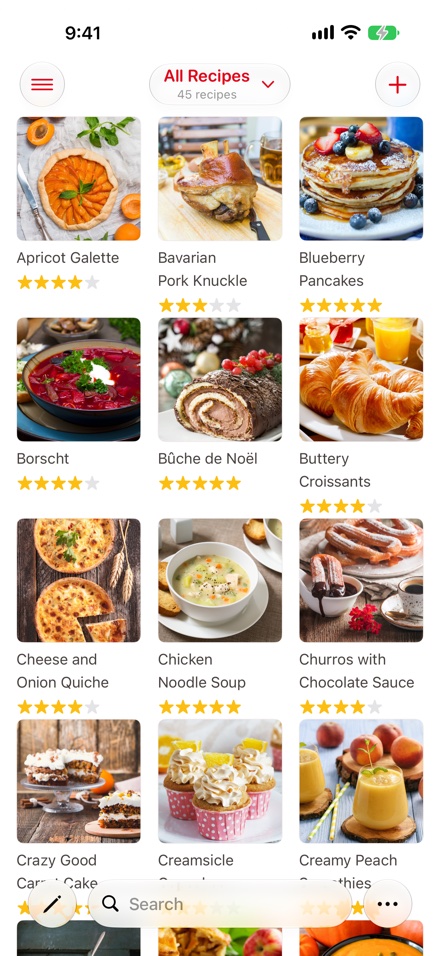
- Current category and count Browsing Recipes
- Categories button Browsing by Category
- Search bar Searching Recipes
- button Adding a Recipe
All of your recipes are displayed on the recipes screen. On iPad, the left column displays the list of recipe categories, while the right side shows the recipes themselves. On iPhone, the recipes list fills the screen, and you can bring up the categories list with the categories button in the toolbar.
Note
You can change the recipe view to display recipes in a condensed list or a photo grid view: tap the button in the toolbar at the bottom of the screen and choose List or Grid.
Note
The recipes displayed belong to the currently selected cookbook, and the number of recipes in the current category is displayed with the list. See Cookbooks for details on switching between cookbooks.
Browsing by Category
All Recipes is the default selected category, which displays all of your recipes in alphabetical order. If you would like to change the selected category, simply tap on a new category to highlight it.
Note
On iPad, the categories column slides out of the way when you open a recipe, and returns when you close it.
Browsing Subcategories
Categories that have subcategories will have an expansion control displayed next to them. Tap it to reveal or hide the subcategories.
Searching Recipes
The recipes screen contains a search field. On iPhone it sits at the bottom of the screen, within easy reach of your thumb. On iPad, tap the search button in the navigation bar. Start typing, and your recipes listing will be filtered as you type.
Paprika looks for each word you type separately, and shows the recipes that contain all of them. For example, chicken spinach finds recipes that mention both chicken and spinach, in any order. A word can match part of a longer word, and capitals and accents don't matter.
Note
Separate your search words with spaces, not commas.
While searching, the options above the results change what's searched:
Search In- The fields to search:Name,Ingredients,Directions,Description,Notes,Source, andSource URL. OnlyNameis selected at first, and Paprika remembers your choice for your next search.Categories- Limit the search to one or more categories, or toFavorites,Uncategorized, or theTrash. Choosing a category includes its subcategories. When you choose two or more, chooseAllto find recipes in every one of them, orAnyto find recipes in at least one.Cookbooks- Search one cookbook, several, orAll Cookbooks. When a search covers more than one cookbook, the category list has a section for each cookbook.
Tap Search Options to show or hide the Categories and Cookbooks choices.
A search starts in the cookbook and category you're browsing. To search your whole collection, choose All Recipes under Categories and All Cookbooks under Cookbooks.
Advanced Search
The advanced search editor finds recipes by almost anything about them, such as recipes under 30 minutes, recipes rated four stars or more, or recipes without a photo. To open it while searching, tap Advanced Search at the top of the recipes list. The editor starts with your current search.
An advanced search is made of rules. Each rule picks a field, a condition, and a value:
| Fields | Conditions |
|---|---|
| Name, Ingredients, Directions, Notes, Description, Source, Source URL, Nutrition | contains, does not contain, is, is not, begins with, ends with, is empty, is not empty. One rule can look in several of these fields at once. |
| Prep Time, Cook Time, Total Time (in minutes), Servings, Rating | is, is not, is greater than, is at least, is less than, is at most, is between. |
| Difficulty | is, is not. |
| On Favorites, Is Pinned, In Trash | Yes or no. |
| Categories | includes any of, includes all of, excludes, is Uncategorized. |
| Cookbook | is any of, is none of. |
| Thumbnail, Attached Photos | Whether the recipe has a thumbnail, and whether it has attached photos and they've been downloaded. |
At the top of the rules, choose whether recipes must match all or any of them. Tap the button to add a rule, or choose Add Group to add a group of rules with its own all or any choice. Tap the button to remove a rule or group. Under Sort, you can choose how the results are sorted.
When you're done, tap the search button in the upper right to run the search. The search options are replaced by a summary of what you're searching for. To change the search, tap Edit Search at the top of the list.
Note
In an advanced search, the words in a text rule are matched as a single phrase. The first time you search by time or servings, Paprika needs a moment to index your recipes, and a notice says the results may be incomplete until it's done.
Saved Searches Premium
You can save an advanced search to run again later. In the advanced search editor, tap Save Current Search, enter a name, and tap . Saved searches sync to all of your devices.
To run a saved search, open the advanced search editor and tap the search under Saved Searches, then tap . This replaces the search in the editor. Tap the search button to run it.
To change a saved search, load it, make your changes, and tap Update Saved Search. The editor lists your first five saved searches. Tap Show All… to see the rest, where you can tap and hold or swipe a search to Rename or Delete it.
Sorting Recipes
You can sort recipes by tapping the button in the toolbar and choosing Sort By.
Choose the field you would like to sort by: Name, Rating, Most Recent, Prep Time, Cook Time, Total Time, or Servings. Then choose Ascending or Descending.
Note
The Most Recent and Top Rated categories have their own fixed order, so sorting isn't available while you're viewing them.
Table of Contents
- Introduction
- What's New
- Beta Testing
- Overview
- Adding Recipes
- Scanning Recipes
- Browsing Recipes
- Editing Recipes
- Viewing Recipes
- Nutrition
- Categories
- Cookbooks
- Browser
- Groceries
- Pantry
- Meals
- Menus
- Sharing
- Settings
- Extensions
- Resources