Warning

This guide is for Paprika 4, which is currently in beta. Switch to the Paprika 3 guide.

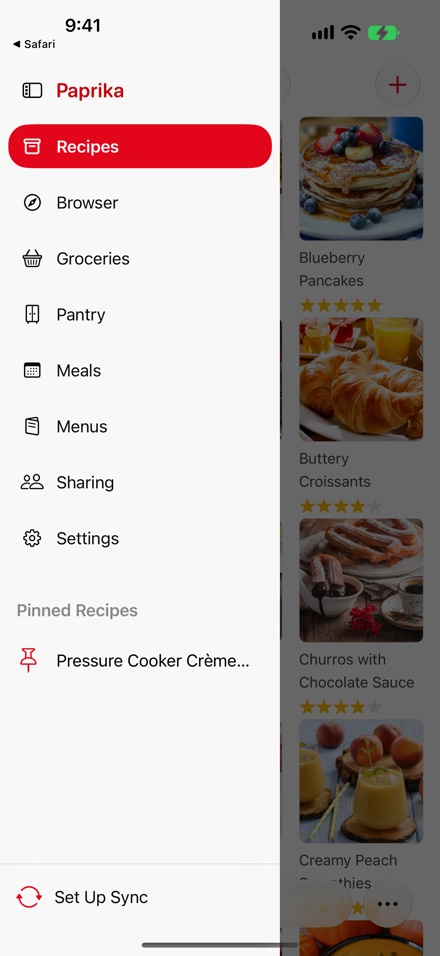
The Main Menu open on iPhone: the Recipes, Browser, Groceries, Pantry, Meals, Menus, Sharing and Settings rows with Recipes selected, a pinned recipe below them, and Set Up Sync at the bottom.
The Main Menu in Paprika for iOS.

Paprika is divided into seven main sections, each of which is accessible from the Main Menu sidebar on the left side of the screen.

On iPhone, the sidebar is hidden until you need it: tap the menu button in the upper left corner of the toolbar (or swipe in from the left edge of the screen) to slide it open, then tap the section you would like to visit. Tap anywhere outside the sidebar to dismiss it.

Note

On iPad, the sidebar stays on screen next to the current section. In portrait (or a narrower split-screen window) it appears as a compact rail of icons; in landscape you can expand it to show icons and labels. Use the sidebar button at the top of the rail to switch between the compact and expanded layouts.

Section Description
Recipes This is the main screen of the application, and contains your recipe collection. From here you can open individual recipes, search for recipes, and view recipes by category.
Browser The built-in web browser allows you to browse for recipes online, and clip your favorite recipes into Paprika.
Groceries This shows your current grocery lists. From here you can check off grocery items as you shop, edit your grocery lists, and add custom grocery list items.
Pantry The pantry section keeps track of common ingredients you may have at home. In this section you can add custom pantry items, change expiration dates and purchased dates, and more.
Meals This is Paprika's meal planner. You can use it to create weekly and monthly meal plans, and view your daily meal schedule.
Menus The menus section allows you to create reusable menus from your favorite meal plans.
Sharing The sharing section is where you manage your family sharing and your in-app messages — sending recipes to other Paprika users, and importing the recipes they send you.

Below the sections, the sidebar also contains a Settings row, which opens the Settings panel, and an Unlock Premium row, which opens the Paprika 4 Premium purchase screen. (The Unlock Premium row disappears once you have subscribed.)

When the sidebar is fully expanded, it also displays your running Timers and your Pinned Recipes, and your account status is displayed at the bottom.

Note

Paprika 4 features a completely redesigned interface, and supports both light and dark appearances. Paprika follows your device appearance.

Note

When you quit and relaunch Paprika, it will reopen to the section or recipe you were last viewing. If you would prefer Paprika to always open to a specific section, you can choose a startup screen in the Settings panel.

Table of Contents

  1. Introduction
    1. Table of Contents
  2. What's New
    1. Highlights
    2. Other Changes
  3. Beta Testing
    1. Before You Start
    2. What to Test
      1. Adding Recipes
      2. Organizing
      3. Nutrition
      4. Sharing
      5. Pantry
      6. Meals
      7. Integrations
    3. Sending Feedback
  4. Overview
  5. Adding Recipes
    1. Adding a Recipe
    2. Adding a Recipe from the Clipboard
  6. Scanning Recipes
    1. Scanning a Recipe
    2. Editing a Scanned Recipe
    3. Scanning Tips
  7. Browsing Recipes
    1. Browsing by Category
    2. Browsing Subcategories
    3. Searching Recipes
    4. Advanced Search
    5. Saved Searches
    6. Sorting Recipes
  8. Editing Recipes
    1. Editing a Recipe
    2. Deleting Recipes
    3. Recipe Fields
    4. Inserting Recipe Text
    5. Adding Recipe Photos
  9. Viewing Recipes
    1. Recipe Actions
    2. Printing Recipes
    3. Timers
    4. Scaling & Converting Ingredients
    5. Crossing off Ingredients
    6. Marking Directions
    7. Ingredient Substitutions
    8. Pinning Recipes
    9. Photo Gallery
  10. Nutrition
    1. Entering Nutrition Facts
    2. Analyzing Ingredients
    3. Viewing Nutrition
  11. Categories
    1. Assign a Recipe to a Category
    2. Suggesting Categories
    3. Adding a Category
    4. Editing Categories
    5. Built-In Categories
  12. Cookbooks
    1. Switching Cookbooks
    2. Adding a Cookbook
    3. Managing Cookbooks
    4. Moving Recipes between Cookbooks
    5. Sharing a Cookbook
  13. Browser
    1. Using the Browser
    2. Clipping Recipes Online
    3. Clipping Recipes from Social Media
    4. Manually Saving Recipes Using the Clipboard Tools
      1. Tips
  14. Groceries
    1. Adding Ingredients
      1. Adding a Recipe to the Grocery List
      2. Adding a Custom Item to the Grocery List
    2. Editing the Grocery List
      1. Editing Grocery List Items
      2. Removing Items from the Grocery List
    3. Using the Grocery List
      1. Marking Items as Purchased
      2. Filtering Grocery List Items
      3. Searching the Grocery List
      4. Sorting the Grocery List
    4. Managing Multiple Grocery Lists
      1. Viewing your Grocery Lists
      2. Adding a New Grocery List
      3. Renaming a Grocery List
    5. Grocery List Actions
    6. Using Siri
  15. Pantry
    1. Adding Items to the Pantry
    2. Editing Pantry Items
    3. Pantry Locations
    4. Scanning Barcodes
    5. Sorting the Pantry
    6. Searching the Pantry
    7. Pantry Actions
  16. Meals
    1. Viewing the Meal Planner
      1. Switching Views
      2. Daily View
      3. Weekly View
      4. Monthly View
    2. Adding a Meal
      1. From the Meal Planner
      2. From the Recipe Screen
      3. Drag and Drop
    3. Editing Meals
      1. Changing a Meal's Date or Type
      2. Deleting Meals
      3. Moving or Copying Meals
      4. Scaling Meals
    4. Meal Planner Actions
    5. Calendar Feed
  17. Menus
    1. Adding a Menu
    2. Adding Menu Items
    3. Drag and Drop
    4. Adding a Menu to the Meal Planner
    5. Menu Actions
  18. Sharing
    1. Family Sharing
      1. Inviting Family Members
      2. Managing Family Members
    2. Messages
      1. Sending Recipes & Cookbooks
      2. Receiving & Importing Recipes
      3. Push Notifications
  19. Settings
    1. Accessing the Settings Panel
    2. List of Settings
    3. Account
      1. Paprika Cloud Sync
      2. Creating an Account
      3. Logging In
      4. Managing your Account
      5. Deleting your Account
    4. Import Recipes
      1. YAML Format
    5. Export Recipes
      1. How to export your recipes
    6. Find Duplicates
    7. Alexa
  20. Extensions
    1. Saving Recipes from Other Apps
    2. Widgets
    3. Shortcuts
    4. Apple Watch
      1. Grocery Lists
      2. Timers
  21. Resources
    1. Technical Support
    2. Frequently Asked Questions
    3. Changelog