Warning
This guide is for Paprika 4, which is currently in beta. Switch to the Paprika 3 guide.
Cookbooks
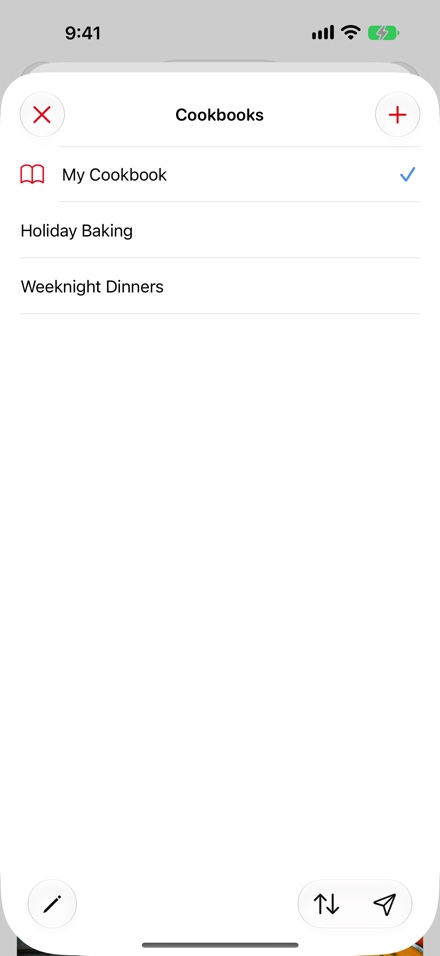
- Cookbooks, the current one ticked Switching Cookbooks
- button Adding a Cookbook
- Edit button Managing Cookbooks
- Sort button Managing Cookbooks
- Share button Sharing a Cookbook
Paprika 4 allows you to organize your recipes into multiple cookbooks. Each cookbook is a separate collection with its own recipes and categories. You might use one cookbook for everyday cooking, another for baking, and a third for recipes you're still planning to try.
Every account starts with a single cookbook named My Cookbook. If you never create another cookbook, Paprika works just like it always has. Your default cookbook cannot be deleted.
Note
Cookbooks are synced with your Paprika account, so your cookbooks will appear on all of your devices.
Switching Cookbooks
The name of the current cookbook is displayed at the top of the categories list on the recipes screen. Tap it to open the Cookbooks screen, which lists all of your cookbooks with a checkmark next to the current one. Tap the cookbook you would like to view. The recipes list and categories apply to the currently selected cookbook. A search starts there too, but you can widen it to other cookbooks.
Note
On iPhone, the categories list is reached by tapping the name of the current category (for example, All Recipes) at the top of the recipes screen; on iPad, categories are always displayed in the column to the left of your recipes.
Adding a Cookbook Premium
To create a new cookbook, tap the name of the current cookbook at the top of the categories list, then press the button in the upper corner of the Cookbooks screen. Enter a name for your new cookbook.
Managing Cookbooks
Tap the name of the current cookbook at the top of the categories list to open the Cookbooks screen, which lists all of your cookbooks. Use the sort control to change how the list is ordered.
Tap and hold a cookbook in the list to reveal its context menu, where you can choose Edit to rename the cookbook, Send to Paprika User… to send it to someone, or Delete to remove it. Paprika will ask you to confirm before deleting a cookbook.
When you delete a cookbook, Paprika asks what to do with the recipes inside it:
- Move to Trash - Moves the recipes to the Trash, where you can restore them until the Trash is emptied.
- Keep Recipes - Moves the recipes into your default cookbook, keeping their categories.
Choose Cancel to keep the cookbook.
Moving Recipes between Cookbooks
To move recipes into a different cookbook, tap in the recipes list and select one (or more) recipes. Then tap , choose Change Cookbook, and select the destination cookbook. You can also change a recipe's cookbook with the cookbook selector when editing the recipe.
If the recipes have categories that the destination cookbook doesn't, Paprika asks whether to bring them along. creates the missing categories in the destination cookbook, and moves the recipes without their categories. Paprika doesn't ask when the recipes are uncategorized or the destination already has all their categories.
Sharing a Cookbook Premium
You can send a copy of an entire cookbook to another Paprika user as an in-app message. Open the Cookbooks screen from the top of the categories list, tap and hold the cookbook you would like to share, and choose Send to Paprika User…. To send the current cookbook, you can also tap the send (paper plane) button at the bottom of the list.
The recipient finds the cookbook under Sharing › Messages, where they can import a copy of its recipes and categories. Changes you make to the cookbook later are not sent. See Sending Recipes & Cookbooks for details.
Note
If you are part of a family account, your family members share your recipe collection automatically — you don't need to share cookbooks with them individually.
Table of Contents
- Introduction
- What's New
- Beta Testing
- Overview
- Adding Recipes
- Scanning Recipes
- Browsing Recipes
- Editing Recipes
- Viewing Recipes
- Nutrition
- Categories
- Cookbooks
- Browser
- Groceries
- Pantry
- Meals
- Menus
- Sharing
- Settings
- Extensions
- Resources