Warning
This guide is for Paprika 4, which is currently in beta. Switch to the Paprika 3 guide.
Viewing Recipes
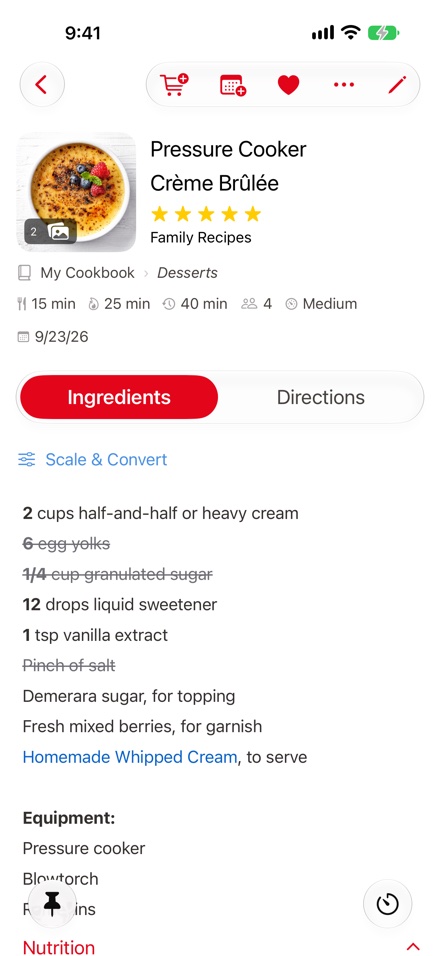
- Recipe toolbar Recipe Actions
- button Editing a Recipe
- Photo Photo Gallery
- Ingredients and Directions Viewing Recipes
- Scale & Convert Scaling & Converting Ingredients
- Crossed-off ingredient Crossing off Ingredients
- Pin button Pinning Recipes
- Timer button Timers
From the recipes screen, tap on a recipe in the listing in order to open the recipe.
This is the main recipe view. Information about the recipe is displayed near the top, the ingredients are displayed on the left, and the directions are displayed to the right. The description will be displayed above the directions and the notes will be displayed below the directions. Any nutritional information, including a Nutrition Facts label, will appear below the ingredients.
On iPhone, the recipe shows one column at a time: use the Ingredients / Directions switch under the header to change between them. The switch stays at the top of the screen as you scroll.
The header shows the recipe's cookbook and categories, as in My Cookbook › Dinner, Italian. If the list is too long to fit, tap the arrow at its end to see every category.
Note
The description, notes, and nutritional information sections are collapsible. Tap a section's header to show or hide its contents.
Note
If the recipe has a source URL, the source will be highlighted. You can tap on the source to load the original source URL in the browser. If you prefer recipe links to open in Safari instead of Paprika's built-in browser, you can change this with the Open Links In setting in the Settings panel.
Recipe Actions
The toolbar contains several actions you can perform with the recipe:
| Action | Description |
|---|---|
| Add to Grocery List | Add this recipe to the grocery list. You'll be asked to choose ingredients and grocery list first. |
| Add to Meal Planner | You can add a recipe to the meal planner using this button. Select the date and type of meal you would like to add this recipe to, and then press . |
| Add to Favorites | Add this recipe to your favorites. Tap the heart again to remove it from your favorites. |
Note
On iPhone, these buttons appear at the trailing edge of the navigation bar next to the button; on iPad they are centered in the navigation bar, with pinned to the right.
Less common actions are placed under the button to the right of the other buttons.
| Action | Description |
|---|---|
| Print the contents of this recipe. Printing requires an AirPrint-enabled printer. | |
Email recipients can import the recipe into their copy of Paprika by tapping the .paprikarecipes attachment. When emailing a single recipe, the recipe will also be displayed as text/HTML in the body of the email. |
|
| Send to Paprika User… | Send this recipe to another Paprika user as an in-app message. See Sending Recipes & Cookbooks for details. |
| Duplicate | Makes a copy of the recipe and then enters edit mode. Good when trying out recipe variations. |
| Ingredient Substitutions | Suggests substitutes for ingredients you don't have. Needs Apple Intelligence. See Ingredient Substitutions. |
| Share | A submenu with Source Link (when the recipe has a source URL), Paprika File and Recipe Text. Each opens the share sheet, so you can send it with AirDrop, Messages, or another app. A Paprika file can be imported into another copy of Paprika. |
| Delete | Moves the recipe to the Trash category. |
Note
You can also tap and hold on a recipe in the recipes list to see many of these actions.
Printing Recipes
As described above, printing is accessed via the button in the recipe toolbar. Printing requires an AirPrint-enabled printer. Paprika 4 offers an expanded set of options you can configure for printing, grouped under Print Options, Card Options, Recipe Options, and Photo Options. Options that don't apply to your choices are hidden. When you're ready, tap to print.
| Option | Description |
|---|---|
| Page Type | Full Page, Index Cards, or Index Card Sheets. Index Cards will print to physical index cards, while Index Card Sheets is meant for printing several index cards on full page paper and then cutting them out. |
| Paper Size | US Letter, US Legal, A4, A5, or A6. Not used for Index Cards. |
| Orientation | Portrait (taller than wide) or Landscape (wider than tall). Not used for Index Cards. |
| Font Size | Allows you to change the font size of the printed recipe. |
| Page Margins | Allows you to adjust the printer margins. Measurements are given in inches. Not used for Index Cards. |
| Card Size | The size of the index card: 3 x 5, 3.5 x 5, 4 x 6, or 5 x 7 inches. |
| Card Margins | Allows you to adjust the inner margin of the index card. Measurements are given in inches. |
| Divider | When printing more than one recipe, separate them with a Page Break or a Line. |
| Layout | One Column prints everything in a single vertical column. Two Columns prints the ingredients and directions side by side, and Two Columns (Wrap) lets the directions continue under the ingredients once they end. Full page only. |
| Show Info | Whether or not the recipe metadata, such as prep and cook times, should be printed. |
| Show Notes | Whether or not the recipe notes should be printed. |
| Show Nutrition | Whether or not the recipe's Nutrition Facts label and nutrition notes should be printed. |
| Show Photos | Thumbnail Only, All Photos (the thumbnail plus the photos embedded in the recipe text), or None. Full page only. |
| Thumbnail Size | Small, Medium, or Large. |
| Thumbnail Position | Whether the thumbnail prints on the Left or Right. |
| Photo Size | How large the embedded photos print: Small, Medium, Large, or Full. Only used with All Photos. |
Note
Printed recipes follow your measurement system, and if you have scaled a recipe, the printout will show the scaled servings.
Timers
Timers are automatically detected in your recipe's directions and highlighted. In order to start a timer, simply tap on the highlighted time and press .
Viewing timers - Running timers are displayed in the recipe's lower toolbar while you cook, and in the Main Menu sidebar when it is fully expanded.
Adding a timer manually - Tap the timer button at the right end of the recipe's lower toolbar to open the Timers list, and then tap the button. You can choose a name for the timer. Once you have selected a time, press to begin the timer.
Removing timers - Timers are automatically removed once they have elapsed. If you would like to manually remove a timer, swipe left across it in the sidebar's timers list and delete it.
Editing timers - To change the name or time of a timer, tap on the timer. You can also pause, resume and cancel the timer from this screen, and see the remaining duration of the timer.
Note
Timers will fire a notification and play an alarm sound even if the app is not open. If you run into issues, make sure you have allowed Paprika to send notifications, that your device is not muted, and that your volume is turned up.
Note
Timers can be set for up to 99 hours.
Scaling & Converting Ingredients
Scaling - You can scale the ingredients of a recipe by tapping the button next to the Ingredients heading.
When the ingredients scaling popup appears, select the amount you'd like to scale the ingredients by and they will change automatically. The scale button will update to display the current recipe scale.
The amount to scale can be entered as a whole number, decimal, or fraction (ex: 3, 0.25, 1/3).
If you add a scaled recipe to the grocery list, the grocery list items will preserve the ingredients scaling.
Note
Paprika anticipates this ingredient format: quantity unit ingredient, i.e. 1 cup milk. For best results, ensure your ingredients are entered in this format.
Converting - You can convert ingredients units from standard (US) units to metric or reset them to their original units by using the option in the same popup.
Crossing off Ingredients
When you are cooking, you may find it useful to cross off ingredients once you have used them. Simply tap the desired ingredient in order to cross it off. (Tap again to un-cross it.)
Marking Directions
You can also highlight the current step of your directions by tapping on it to help keep your place.
Ingredient Substitutions
Missing an ingredient? Tap the button in the recipe toolbar and choose Ingredient Substitutions. Paprika lists the recipe's ingredients. Tap one you don't have, and Paprika suggests one or two substitutes, each with an adjusted amount where one is needed and a short reason it works in this recipe. Tap the ingredient again to clear it.
Note
Ingredient Substitutions is free. It uses Apple Intelligence, so it needs iOS 26 or later with Apple Intelligence turned on in the Settings app; otherwise the action doesn't appear.
Pinning Recipes
You can pin active recipes to easily switch between them while you are cooking. To pin a recipe, tap the button in the recipe toolbar, and choose .
Your pinned recipes are displayed in the Main Menu sidebar when it is fully expanded, and buttons for one or more of your pinned recipes also appear in the lower toolbar of the recipe screen — so you can hop between the dishes you are cooking with a single tap. When a recipe is pinned, Paprika will keep track of the ingredients you have crossed off and the current directions you have highlighted, so you don't lose your place.
Note
On iPad, more pinned recipe buttons fit in the lower toolbar than on iPhone, and fewer are shown while a timer is running.
When you're done cooking, swipe left across the pinned recipe in the sidebar to un-pin the recipe.
Note
From the main recipes list, you can also pin recipes by dragging and dropping them onto the sidebar.
Photo Gallery
If there are photos associated with the recipe, you can tap the thumbnail next to the recipe name — or any photo embedded in the recipe text — to display the photo gallery. The photo gallery contains an ordered list of photos with names displayed at the top. Swipe left and right to move between photos, and tap the button to close the gallery.
Use the button in the upper right of the gallery to open the share sheet for the currently displayed photo, where you can save it to your photo library or send it to another app. The button appears once the photo has downloaded.
Note
When downloading recipes via the browser, only a link to the online photo is saved unless you explicitly add photos to the recipe. In the case that the thumbnail references a linked photo, tapping the thumbnail will load the photo from the internet and display it.
Table of Contents
- Introduction
- What's New
- Beta Testing
- Overview
- Adding Recipes
- Scanning Recipes
- Browsing Recipes
- Editing Recipes
- Viewing Recipes
- Nutrition
- Categories
- Cookbooks
- Browser
- Groceries
- Pantry
- Meals
- Menus
- Sharing
- Settings
- Extensions
- Resources