Warning
This guide is for Paprika 4, which is currently in beta. Switch to the Paprika 3 guide.
Extensions
Saving Recipes from Other Apps
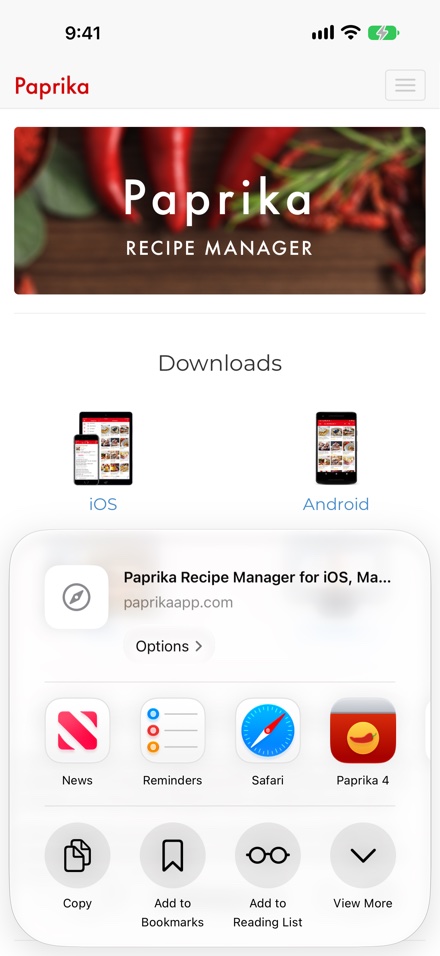
Paprika's share extension allows you to save recipes directly from Safari and other apps, without opening Paprika first. Browse to a recipe you would like to save, then press the button.
In the share sheet, look for Paprika Recipe Manager. If you do not see it, scroll to the end of the app icons, press , and enable Paprika in the list.
Tap the Paprika icon, and Paprika will find the recipe on the page and open the recipe form so you can review and save it into your collection.
Note
The share extension also works with social media apps — share a post from an app such as TikTok or Instagram to Paprika and it will extract the recipe from the post's text. See Clipping Recipes from Social Media.
Note
You must be logged into a Paprika account to use the share extension.
Widgets
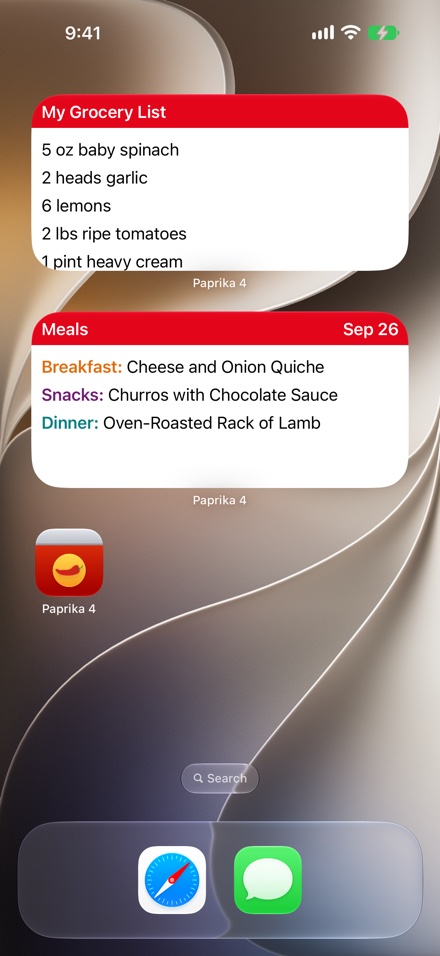
Paprika provides Home Screen widgets that show your data at a glance. Each widget comes in small, medium, and large sizes:
| Widget | Description |
|---|---|
| Meal Planner Widget | Displays the scheduled meals for the day. |
| Grocery List Widget | Displays the selected grocery list. Tap and hold the widget and choose Edit Widget to pick which grocery list is displayed. |
To add a widget, tap and hold an empty area of your Home Screen, press the button in the corner, choose Add Widget, and search for Paprika.
Shortcuts
Paprika supports the Shortcuts app, so you can automate common tasks and run them from Shortcuts or by voice. Available actions include:
Add To Grocery List- Add items to a grocery list.Export Grocery List- Export the contents of a grocery list.Add To Pantry- Add items to your pantry.Show Meal- Show your scheduled meals.Open Link- Open a link in Paprika's browser.Open Paprika- Open a specific screen in Paprika.
Apple Watch
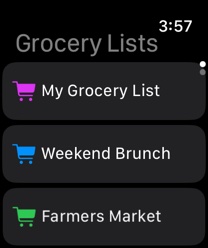
Paprika's Apple Watch companion app puts your grocery lists and timers on your wrist. The Watch app loads its data from the paired iPhone — if your lists haven't loaded yet, launch Paprika on your phone and they will transfer over.
Grocery Lists
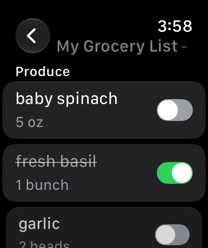
The Grocery Lists screen displays your grocery lists. Tap a list to view its items, and tap an item to mark it as purchased — it will be crossed out. Tap it again to mark it unpurchased.
You can filter the items shown (for example, to only the items still to buy), swipe left across an item to delete it, and add new items by name using the button — dictate the item's name or scribble it with your finger.
Timers
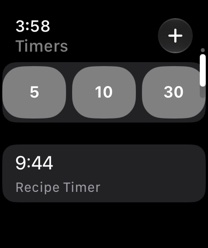
Scroll down from the grocery lists to reach the Timers screen. Start a timer with one of the preset buttons, or create a custom timer with your own duration. Running timers display a countdown, and your Watch will notify you when a timer finishes.
Table of Contents
- Introduction
- What's New
- Beta Testing
- Overview
- Adding Recipes
- Scanning Recipes
- Browsing Recipes
- Editing Recipes
- Viewing Recipes
- Nutrition
- Categories
- Cookbooks
- Browser
- Groceries
- Pantry
- Meals
- Menus
- Sharing
- Settings
- Extensions
- Resources