Warning
This guide is for Paprika 4, which is currently in beta. Switch to the Paprika 3 guide.
Settings
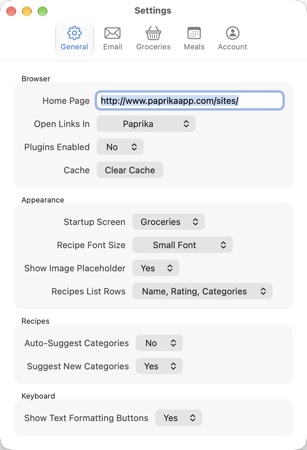
- Settings tabs List of Settings
- Account tab Account
- Browser settings List of Settings
- Appearance settings List of Settings
The settings window allows you to configure Paprika's default behavior.
It also provides access to your Paprika account and syncing. Paprika's import, export, and Find Duplicates tools live in the File menu — see Import Recipes, Export Recipes, and Find Duplicates below.
Accessing the Settings Panel
Paprika's settings can be accessed by navigating to Paprika -> Settings… in the menu bar (or pressing Command-,). You can also click the button at the top of the sidebar. The settings window is divided into five tabs: General, Email, Groceries, Meals, and Account.
List of Settings
| General - Browser | |
| Home Page | Can be used to set the default home page on the browser screen. |
| Open Links In | Choose whether links open in Paprika's built-in browser or in your default web browser. |
| Plugins Enabled | Whether or not web browser plugins are enabled. |
| Cache | Button to clear the web browser cache. |
| General - Appearance | |
| Startup Screen | Choose which section Paprika opens to when it launches. |
| Recipe Font Size | Adjusts the font size of the ingredients and directions on the recipe screen. |
| Show Image Placeholder | Shows a placeholder for recipes that do not have a photo. Otherwise the recipe name will be left aligned with no thumbnail. |
| Recipes List Rows | Choose which details (such as name, rating, and categories) are displayed for each recipe in the recipes list. |
| General - Recipes | |
| Auto-Suggest Categories | If turned on, Paprika suggests categories automatically when you add a recipe from the browser, the clipboard, or a scan. See Suggesting Categories. Requires Paprika 4 Premium. |
| Suggest New Categories | If turned on, category suggestions can include categories you don't have yet. Turn it off to use only your existing categories. Requires Paprika 4 Premium. |
| General - Keyboard | |
| Show Text Formatting Buttons | Whether the formatting toolbar is displayed while editing recipe text. Turn this off if you prefer to type the Markdown formatting yourself. |
| Default Recipient | Sets a default recipient in the To: field for any email messages. Note You can enter multiple recipients by separating them with commas. |
| Send Email With |
Which service to use to email recipes, grocery lists, etc.: macOS Mail app, SMTP Server, or
Gmail. By default Paprika uses the macOS Mail app, which requires an email account configured in Mail.
Alternatively, you can configure an SMTP server manually, or choose Gmail and click
Set Up Account to sign in with your Google account.
|
| Groceries | |
| Consolidate Ingredients |
If turned on, the grocery list will attempt to consolidate similar items with one another. For example,
if one recipe calls for 2 eggs, and another recipe calls for 3 eggs, the consolidated
listing will display 5 eggs total. If turned off, the grocery list will display each item
individually.
|
| Show Recipe Names | If turned on, the recipe name will display in the grocery list underneath the ingredient and quantity. |
| Aisles | Click Customize to change and reorder the grocery list aisles. You can add new aisles, delete aisles, and rename them. |
| Meals | |
| Week Starts On | First day of the week. Used when displaying a week of meals or selecting a date for a meal. |
| Meal Types | Click Customize... to add, remove, change and reorder the existing meal types. You can also associate a color and a time with each meal type. |
| Calendar Export Options | Allows you to configure the name of the exported Calendar and the time zone used for exported meals. |
| Calendar Feed | Creates a link that calendar apps can subscribe to, so your meal plan appears in them and stays up to date. See Calendar Feed. Requires Paprika 4 Premium. |
The Account tab is described under Account below.
Account
The Account tab of the settings window (called Cloud Sync in earlier versions) is where you create or log into your Paprika account, manage your account details, and control syncing.
Paprika Cloud Sync
Paprika Cloud Sync is an automated backup and syncing service for your recipe collection. It will automatically upload your recipes, cookbooks, categories, grocery lists, pantry, meals, and other data to our cloud servers, ensuring your data is safely backed up.
If you have Paprika installed on multiple devices, you can also use Paprika Cloud Sync to keep your data synced across all of those devices.
Note
Paprika Cloud Sync does not use iCloud. Instead, you will need to create a separate Paprika account as described below. Syncing will not be enabled until you set up a Paprika account.
Note
Paprika Cloud Sync isn't available in the free version. It's included for Paprika 3 owners and with Paprika 4 Premium.
Accessing your Account
Your account can be accessed via the Account tab of the Settings window. Your account email and last-synced time are also displayed at the bottom of the sidebar.
Creating an Account
You'll create one Paprika account for all devices sharing the same recipe collection. You can do this through the settings pane of any version of Paprika, and then log in to that same account on all other versions of Paprika.
To create an account, open the Settings window, and then select the tab. Then select .
Enter in your name, and the email address and password you would like to use for this account.
Note
If you already have an account, please login to that account instead of creating a new one. Recipes synced with an existing account will not be available under a new account.
Logging In
If you already have an account, you can log back into it using the button on the account screen.
Managing your Account
After logging in, you can manage your account and sync status from the Account settings pane.
| Account Status | |
| Name | The name associated with the account. |
| The email address associated with the account. | |
| Sync Status | |
| Last Synced | The date of the last successful sync attempt. |
| Status |
The result of the last sync attempt. This will say Success if you were able to successfully sync. If your
device was not able to connect to the sync server, the associated message will be displayed here.
|
| Sync Settings | |
| Update |
You can choose how often you would like to sync using the Update dropdown.
|
| Actions | |
| Log Out | Pressing this lets you log out of your account and cancels the sync, if running. |
| Manage Account |
A dropdown menu containing Change Name, Change Email, Change Password,
and Delete Account. Note Your name is shown to recipients
when you send in-app messages.
|
| Sync Now | Pressing this will initiate a new sync immediately. |
Quick Sync
If you are logged in, your account email and last-synced time are displayed at the bottom of the sidebar. Click the sync icon beside them to start a new sync. You can also choose Sync -> Sync Now in the menu bar, or press Command-Y.
If you aren't logged in, the bottom of the sidebar shows Set Up Sync instead. Click it to open the Account tab of the settings window.
Deleting your Account
If you would like to permanently delete your Paprika account and all of the data associated with it, choose Delete Account from the dropdown in the Account tab. You will be asked to confirm before the deletion is processed.
Note
Account deletion is permanent. Your synced recipes, photos, and other data will be removed from our servers and cannot be recovered. If you would like to keep a copy of your recipes, export them first.
Import Recipes
Paprika can import recipe databases from several other applications. To perform an import:
- Go to
File -> Import…in the menu bar. - Select the file to be imported. Paprika chooses the
Formatat the bottom of the window from the file's extension. If more than one format uses that extension, such as.zip, choose the format yourself. - Choose the
Cookbookfor the imported recipes. It starts with the cookbook you're viewing. For a Paprika file,Import cookbooks from fileis turned on at first, and puts each recipe into the cookbook it was exported from instead. - Click , then click to confirm.
When the import finishes, Paprika reports how many recipes were imported and how many existing recipes were updated.
Note
When importing a Paprika export file, recipes that already exist in your collection are updated rather than duplicated — and if a matching recipe is in your trash, it will be restored.
The currently supported file types are:
| Supported File Types | |
| .paprikarecipe & .paprikarecipes | Paprika's emailed recipe format and its export format. |
| .ysr | YummySoup! export format. |
| .mgourmet, .mgourmet3, & .mgourmet4 | MacGourmet export format. |
| .mx2, .mxp & .mz2 | MasterCook export formats. |
| .mmf | MealMaster export format. |
| .fdx & .fdxz | Living Cookbook export formats. |
| .yml & .yaml | A plain YAML file. See below for more details on this format. |
| .dvo | Cook'n export format. |
| .txt | The Recipe Manager export format. |
| .mcb | My CookBook export format. |
| .db & .zip | Pepperplate database file. Click here for instructions on how to get your database file from Pepperplate. |
| .hcb | Handy CookBook export format. |
| .sqlite | My Recipe Book database file. |
| .rbox | The Recipe Box export file. |
| .zip | Copy Me That export file. |
| .xml | Yum export file. |
YAML Format
YAML is a simple, plain text file with sections delimited by key-value pairs. To indicate a block of text, use an initial pipe character, as shown in directions and ingredients. Consistent indenting should be used, but the order of the fields does not matter, and most are optional with the exception of the name, ingredients and directions. It is recommended that you use an online YAML validator such as this one to validate your file if you're experiencing difficulties importing.
Note
The YAML format is quite strict with regards to whitespace and indentation. Please also make sure your file is saved with a UTF-8 encoding.
YAML recipe example:
name: My Tasty Recipe
servings: 4-6 servings
source: Food Network
source_url: http://www.google.com
prep_time: 10 min
cook_time: 30 min
on_favorites: yes
categories: [Dinner, Holiday]
nutritional_info: 500 calories
difficulty: Easy
rating: 5
notes: |
  This is delicious!!!
photo: (base-64 encoded image)
ingredients: |
  1/2 lb meat
  1/2 lb vegetables
  salt
  pepper
  2 tbsp olive oil
  4 cups flour
directions: |
  Mix things together.
  Eat.
  Tasty.
  Yum yum yum.
YAML multiple recipes example:
- name: My Tasty Recipe
  servings: 4-6 servings
  source: Food Network
  source_url: http://www.google.com
  prep_time: 10 min
  cook_time: 30 min
  nutritional_info: 500 calories
  on_favorites: yes
  categories: [Dinner, Holiday]
  difficulty: Easy
  rating: 5
  notes: |
    This is delicious!!!
  ingredients: |
    1/2 lb meat
    1/2 lb vegetables
    salt
    pepper
    2 tbsp olive oil
    4 cups flour
  directions: |
    Mix things together.
    Eat.
    Tasty.
    Yum yum yum.

- name: My Tasty Recipe 2
  servings: 4-6 servings
  source: Food Network
  source_url: http://www.google.com
  prep_time: 10 min
  cook_time: 30 min
  nutritional_info: 500 calories
  difficulty: Easy
  rating: 5
  photo: | (base-64 encoded image)
  notes: |
    This is delicious!!!
  ingredients: |
    1/2 lb meat
    1/2 lb vegetables
    salt
    pepper
    2 tbsp olive oil
    4 cups flour
  directions: |
    Mix things together.
    Eat.
    Tasty.
    Yum yum yum.
Export Recipes
Paprika currently offers two different export formats:
| Export Formats | |
| HTML |
A standard portable data format that allows you to preserve a copy of your recipe collection. Your recipes
will be exported to a directory, with an individual HTML file for each recipe, and an index.html
displaying the list of exported recipes. Each recipe file will contain
hrecipe metadata in the HTML.
|
| .paprikarecipes | Paprika's bulk recipe export format. These files can be easily imported into any copy of Paprika. |
How to export your recipes
- Go to
File -> Export…in the menu bar. - Select the destination folder you would like the export to be saved to.
- Choose the cookbook to export under
Cookbook, orAll Cookbooks. It starts with the cookbook you're viewing. To export a single category instead ofAll Recipes, click the button besideCategoriesand choose one. - Choose either
HTMLorPaprika Recipe FormatunderFormat. - Press .
Note
Cookbooks round-trip through export and import: a Paprika Recipe Format file remembers each recipe's cookbook. When you import it with Import cookbooks from file turned on, each recipe goes back into its cookbook, which is created if the account doesn't have it yet.
Find Duplicates
Over the years, it's easy to end up with the same recipe saved more than once. The Find Duplicates tool helps you clean these up. To open it, go to File -> Find Duplicates… in the menu bar.
Under Match Recipes By, select the fields you would like to match: Name, Source, Source URL, Ingredients, and Directions. Only Name is selected at first. Recipes are considered duplicates when all selected fields match; capitals and accents don't matter. Click to find duplicate recipes. Paprika searches all of your cookbooks, and leaves out recipes in the Trash.
The matching recipes are displayed in groups, each headed by the recipe's name and its number of copies. In each group, the oldest copy is listed first and marked Keep. Use to select every copy except the one marked Keep, and review the selection. Then click the delete button, or press Delete, and confirm. The selected recipes are moved to the Trash. If you've selected every copy in a group, the confirmation warns you that no copy of that recipe will remain. Double-click a recipe to open it.
Table of Contents
- Introduction
- What's New
- Beta Testing
- Overview
- Adding Recipes
- Scanning Recipes
- Browsing Recipes
- Editing Recipes
- Viewing Recipes
- Nutrition
- Categories
- Cookbooks
- Browser
- Groceries
- Pantry
- Meals
- Menus
- Sharing
- Settings
- Extensions
- Resources