Warning
This guide is for Paprika 4, which is currently in beta. Switch to the Paprika 3 guide.
Pantry
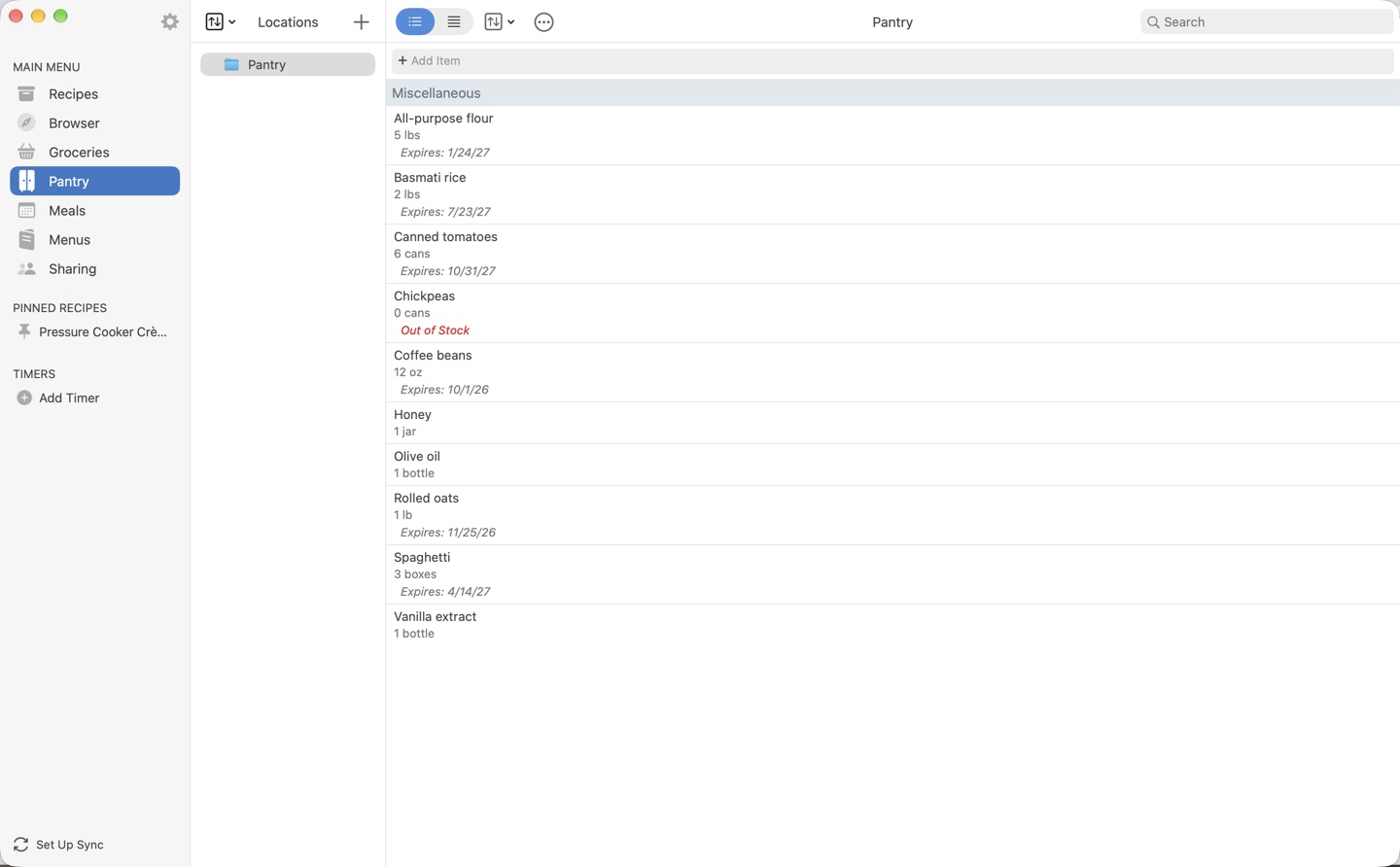
- Add Item Adding Items to the Pantry
- An item, out of stock Editing Pantry Items
- Locations Pantry Locations
- above the locations Pantry Locations
- button Sorting the Pantry
- Search Searching the Pantry
- Actions menu Pantry Actions
The pantry can be accessed by clicking the section in the main menu.
Use the pantry to keep track of common ingredients you already have at home, such as: salt, pepper, flour, sugar, etc.
For each pantry item you can record the quantity, purchase date, expiration date, a note, and whether it is in stock or out of stock.
Ingredients placed in your pantry will automatically be unchecked when you add recipes or meal plans to your grocery list.
Adding Items to the Pantry
To add an item to the pantry, click the bar above the list and type in the ingredient name, then hit Enter.
Shortcut You can paste multiple lines of text into the add field to create several pantry items at once.
Editing Pantry Items
Double-click on a pantry item to open the edit screen for that item. From here you'll be able to update the item's ingredient, aisle, location, quantity, purchase date, expiration date, and notes.
Note
The In Stock checkbox follows the quantity stepper: stepping the quantity down to zero marks the item out of stock, and stepping it up from zero marks it in stock again.
Pantry Locations Premium
You can organize your pantry into multiple locations, such as Pantry, Fridge, Freezer, or Spice Rack. Your locations are displayed in the Locations pane on the left — click on a location to view the items stored there.
To create a new location, press the button in the locations pane and enter a name. The default location cannot be deleted, but it can be renamed.
To move items to a different location, select one (or more) items, then right-click and choose Move to Location. You can also choose Copy to Location if you would like the item listed in more than one location.
Note
Pantry locations are synced across your devices.
Sorting the Pantry
By default, your pantry will be sorted into aisles, similar to the grocery list.
If you prefer, you can change the pantry sort order by tapping the button in the toolbar. You can choose between sorting by: Aisle, Date Added, Expiration Date, or In Stock.
Searching the Pantry
Use the search bar on the pantry screen to quickly find an item. The search matches item names and notes.
Pantry Actions
You can access these actions by pressing the button in the toolbar.
| Action | Description |
|---|---|
| Copy to Grocery List | Copies items from the pantry to the grocery list, leaving them in the pantry. You can choose between copying all items, expired items, out of stock items, or the selected items. |
| Move to Grocery List | Moves items from the pantry to the grocery list. You can choose between moving all items, expired items, out of stock items, or the selected items. |
Send an email containing the contents of the pantry, formatted as a table with Quantity, Ingredient, Notes, Out of Stock, and Expires columns. |
|
Print out the pantry as a table with Quantity, Ingredient, Notes, Out of Stock, and Expires columns. |
Table of Contents
- Introduction
- What's New
- Beta Testing
- Overview
- Adding Recipes
- Scanning Recipes
- Browsing Recipes
- Editing Recipes
- Viewing Recipes
- Nutrition
- Categories
- Cookbooks
- Browser
- Groceries
- Pantry
- Meals
- Menus
- Sharing
- Settings
- Extensions
- Resources